
How to Do the Burning Bridges Trend: 2 Ways, Tested
By the BurningBridge team · Tested October 16, 2026
There are two ways to join the Burning Bridges trend. You can film yourself doing the “where she at” scan for free, or you can turn one photo into the AI party clip that most of the feed is posting now.
We make an AI generator for the second one, so we ran the AI version eight times with eight different kinds of photo — a clear selfie, sunglasses, a side profile, a group shot, a dark bar photo, a dog, a cat and a cartoon. Everything below comes from those runs, including the two that failed. All test subjects are AI-generated, fictional people and animals.
What the Burning Bridges Trend Is
The trend comes from the party scene in the Burning Bridges music video: a crowded private dining room under crystal chandeliers, a host raising a silver cup to a handheld camera, friends cheering behind him, and a hand held flat above the eyes to scan the room on the line “where she at?”.
That scan became a meme on its own. The AI version, which took off in late September 2026, puts someone else in the host’s spot — you, a friend who said yes, your pet or a cartoon character.
Way 1: Do the “Where She At” Scan Yourself (Free)
This is the original version of the trend. All you need is your phone and a room.
- 1Open TikTok, tap +, then Add sound and search for Burning Bridges. Use the official sound so your video shows up on the trend’s sound page.
- 2Find the “where she at” line in the song and play it a few times so you know when it lands.
- 3Film yourself looking toward the camera. On the line, raise one hand flat above your eyes like a visor and slowly turn your head across the room, as if you’re looking for someone in a crowd.
- 4Hold a cup if you have one — the silver cup is half the joke. Friends in the background raising drinks make it look much closer to the original.
- 5Trim the clip so the scan starts exactly on the line, then post.
Way 2: Make the AI Party Clip From One Photo
The AI version needs no filming. With BurningBridge, it works like this:
- 1Pick a template: person, pet or character. The room, crowd and camera moves are the same in all three.
- 2Upload one photo. It goes through a short automatic check first — 4 to 18 seconds in our tests.
- 3Choose 9:16 for TikTok and Reels or 16:9 for YouTube and X, then a 5-second preview or the full 15-second clip.
- 4Wait for it to render. Our 5-second test clips took 2 to 3½ minutes after the photo check; the 15-second clip took about 4 minutes.
- 5Download the MP4 and post it with the sound added in the app (see below).
One thing to expect: every clip opens with the camera pushing through the crowd, so your subject shows up a second or two in. That’s the scene, not a glitch.
Try it with your own photoWhat We Learned From 8 Test Photos
Each row is one real run: the photo we uploaded, then two frames from the clip it produced — the toast at 3.5 seconds and the scan at 4.6 seconds. The sunglasses, side-profile, group, dark-photo and cat runs used the exact template live on the site today; the selfie, dog and cartoon runs were made a few hours earlier, while we were building it. Each photo type ran once, so treat the results as strong hints rather than guarantees.
| Photo | Result | What happened |
|---|---|---|
| Clear, front-facing selfie | Works | Hair, stubble and the navy hoodie all carried over, and the face stayed recognisable through the toast. |
| Wearing sunglasses | Works | Likeness held up and the sunglasses stayed on for the whole clip, including the scan. |
| Side profile | Fails | The AI kept the denim jacket and the hair length but invented a different person — our woman in profile came out as a long-haired man. |
| Group selfie (3 people) | Partly | It picked the most prominent person — the man in the middle holding the phone — and dropped the other two. |
| Dark bar photo | Fails | The face drifted into someone more generic, and the black hoodie was swapped for the scene’s default leather jacket and white T-shirt. |
| Dog | Works | The golden retriever sat up, held the cup in a paw and toasted the camera. |
| Cat | Works | Our tabby stood up on the dinner table, held the cup and did the scan with a paw over its eyes. |
| Cartoon character | Works | The fox stayed a cartoon — same fur, big eyes and necklace — while the room and crowd stayed photorealistic around it. |
Clear, front-facing selfie
Works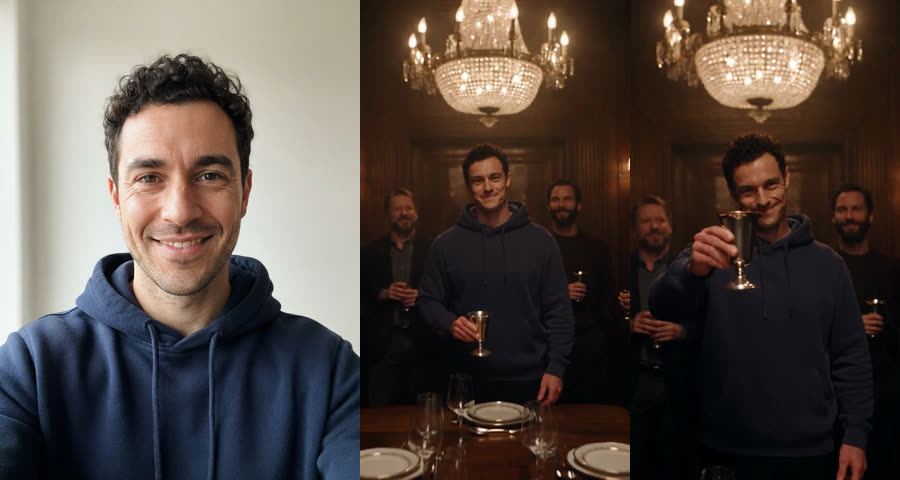
Hair, stubble and the navy hoodie all carried over, and the face stayed recognisable through the toast. This is the photo type to aim for.
Wearing sunglasses
Works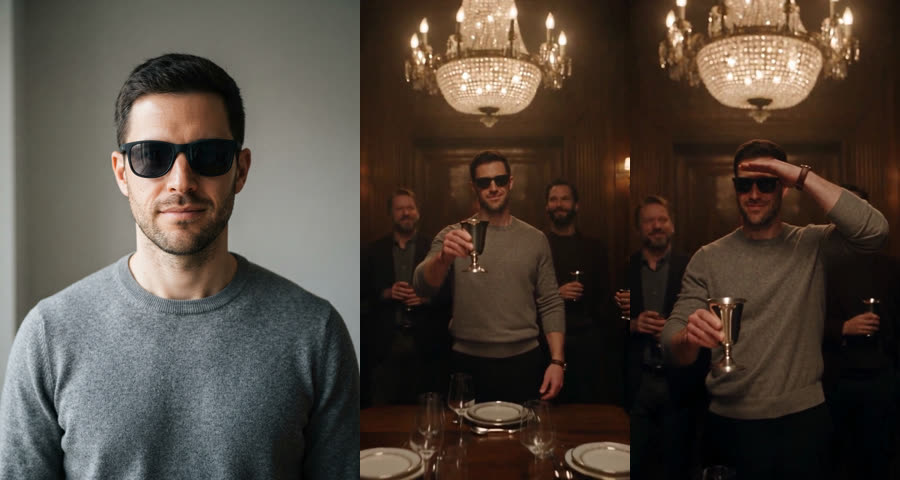
Likeness held up and the sunglasses stayed on for the whole clip, including the scan. Fine if you want them in the video — just know you can’t take them off.
Side profile
Fails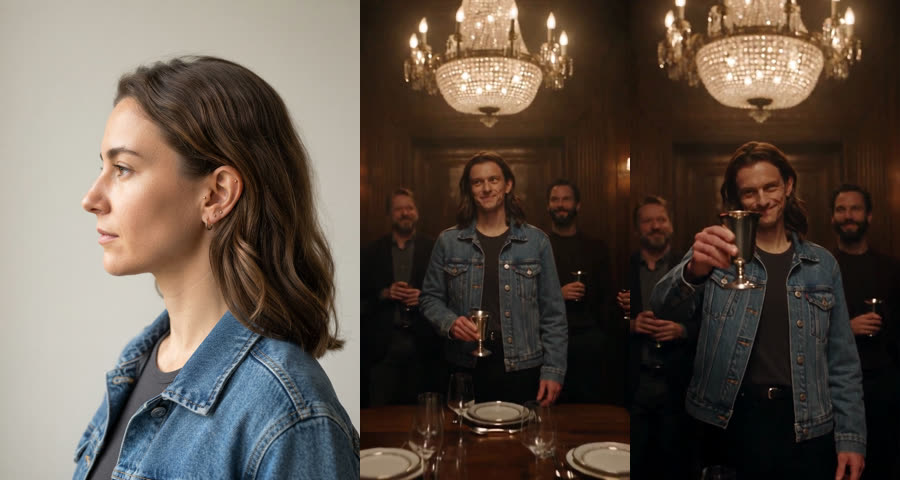
The AI kept the denim jacket and the hair length but invented a different person — our woman in profile came out as a long-haired man. With only half a face to go on, it guesses the rest.
Group selfie (3 people)
Partly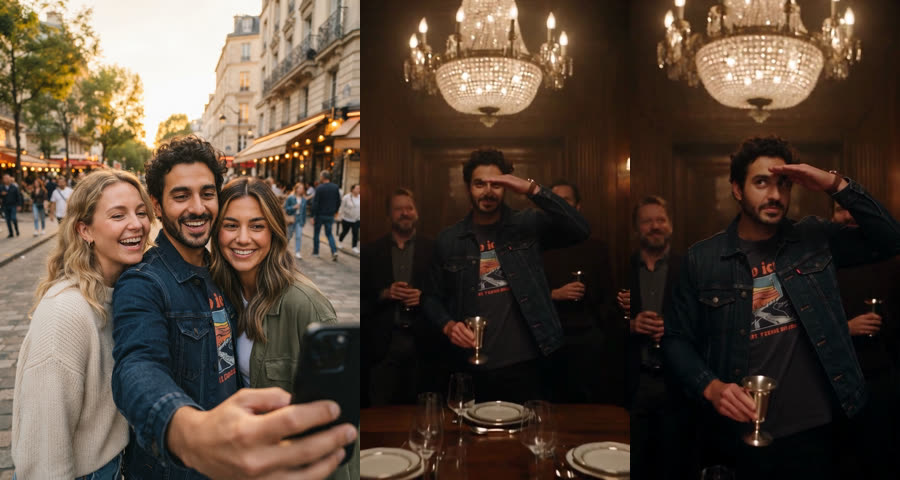
It picked the most prominent person — the man in the middle holding the phone — and dropped the other two. You don’t get to choose who becomes the host, so crop the photo to one person first.
Dark bar photo
Fails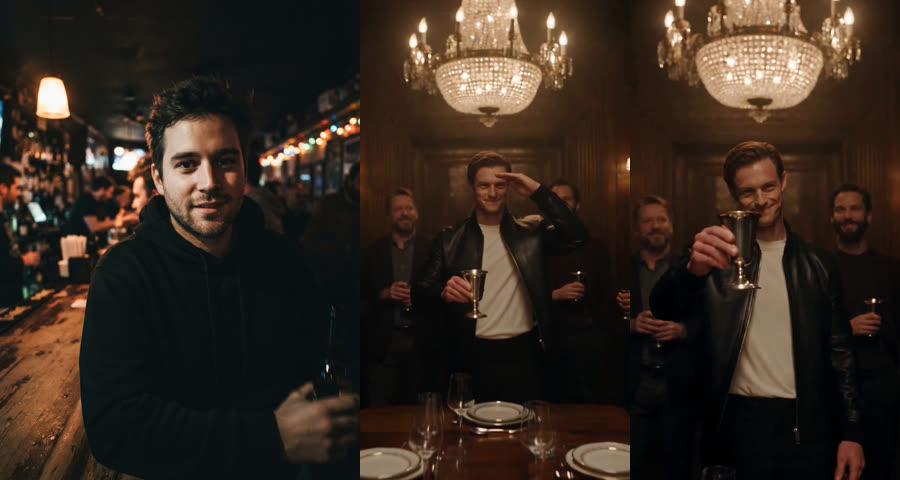
The face drifted into someone more generic, and the black hoodie was swapped for the scene’s default leather jacket and white T-shirt. When the photo is too dark to read, the template fills in the gaps.
Dog
Works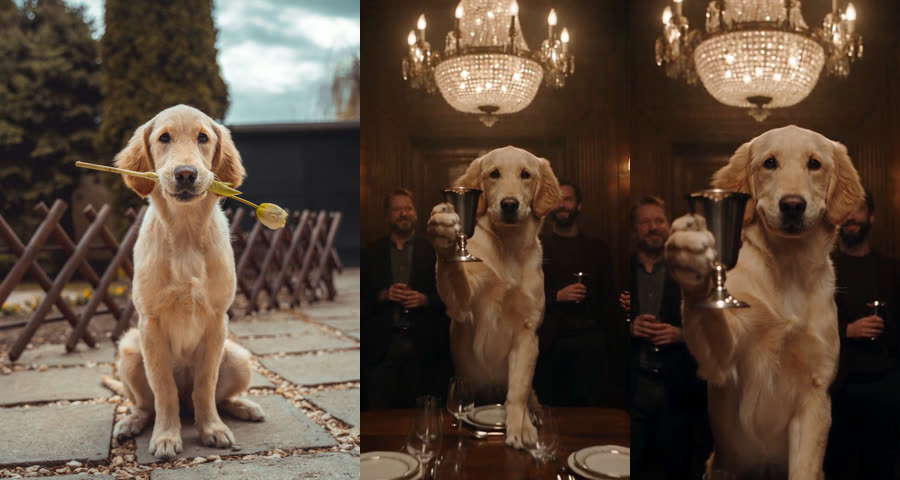
The golden retriever sat up, held the cup in a paw and toasted the camera. Coat colour and face shape matched the photo closely.
Cat
Works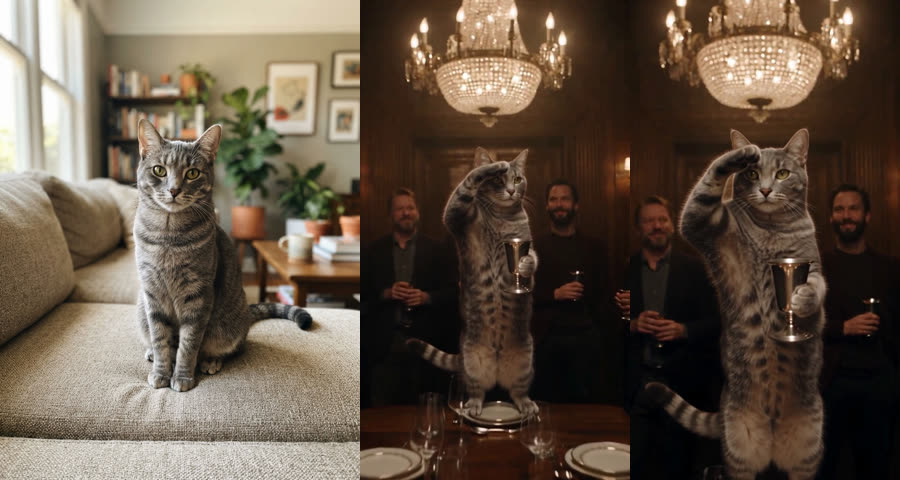
Our tabby stood up on the dinner table, held the cup and did the scan with a paw over its eyes. Of all eight runs, this one followed the original gestures most closely.
Cartoon character
Works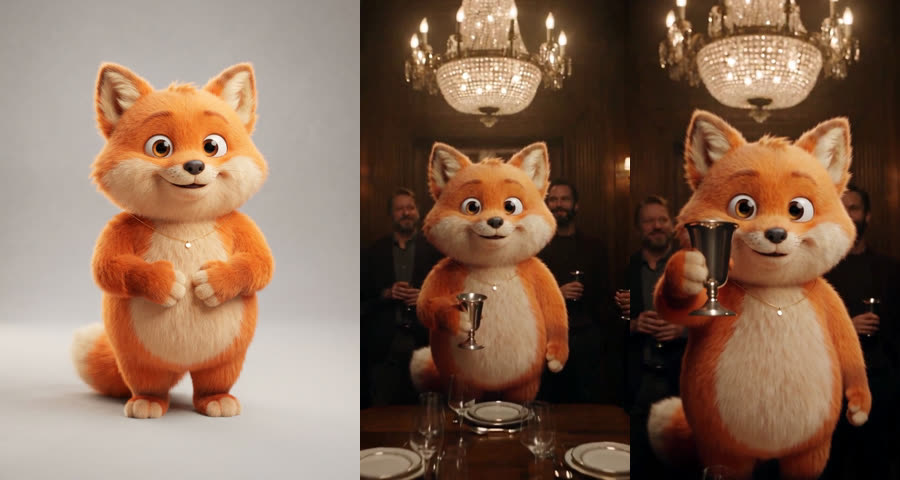
The fox stayed a cartoon — same fur, big eyes and necklace — while the room and crowd stayed photorealistic around it.
Photo Checklist (Based on the Tests)
- One subject only. In a group shot the AI picks one face for you — crop first.
- Face the camera, or close to it. A side profile is the one angle that produced a different person.
- Daylight or a well-lit room. Our dark photo lost both the face and the outfit.
- Wear what you want to wear in the video. Clothes and accessories carry over, sunglasses included.
- Pets and characters: get the whole head in frame, facing forward. Both full-body and head-and-shoulders shots worked.
- Only use photos of yourself, or of adults who have said yes. No children, no celebrities.
How to Post It on TikTok and Reels
- 1Upload the clip and add the Burning Bridges sound from the app’s music library, even though the AI clip has no song of its own. The official sound is what links your post to the trend.
- 2Slide the sound so the “where she at” line lands as the hand goes up — in the 15-second clip that’s around the 9-to-12-second mark.
- 3Turn on the AI-generated label before posting. On TikTok it’s under More options on the Post screen; TikTok asks creators to label realistic AI video and says the label doesn’t reduce reach.
Can’t find the song? Business accounts on TikTok only get the Commercial Music Library, a separate catalogue of pre-cleared tracks that may not include this song. Personal and creator accounts see the full library.
Sources: TikTok: About AI-generated content · TikTok: About the Commercial Music Library
Questions
Is there a free way to do the Burning Bridges trend?
Yes — film the “where she at” scan yourself with the official sound (Way 1 above). Most AI versions are paid, because every clip uses paid video-model time; some tools offer a free first clip. Ours starts at $6.99 for one 15-second video.
Why doesn’t my AI version look like me?
In our tests, two things broke likeness: a side-on angle and a dark photo. Both left the AI guessing, and it filled in a different face. None of our well-lit, front-facing photos had that problem.
Can I put my cat or dog in it?
Yes. Both our cat and dog runs worked; the cat even did the scan with a paw over its eyes. Use a clear photo with the whole head visible.
Does the AI video include the song?
Not ours — you add the sound in TikTok or Instagram when you post, which is also what puts your video on the trend page.
BurningBridge is an independent AI video tool inspired by a social media trend. It is not affiliated with, endorsed by or connected to the artist, their label or any rights holder of the original music video. No footage or music from the original video is used.